
Work together in a team workspace
Team workspaces share projects and a credit pool. Invite people, give them roles and comment on projects together.
Updated October 12, 2026
A team is a workspace with its own projects and a shared credit pool. Switch between Personal and your teams at the top of the side menu.
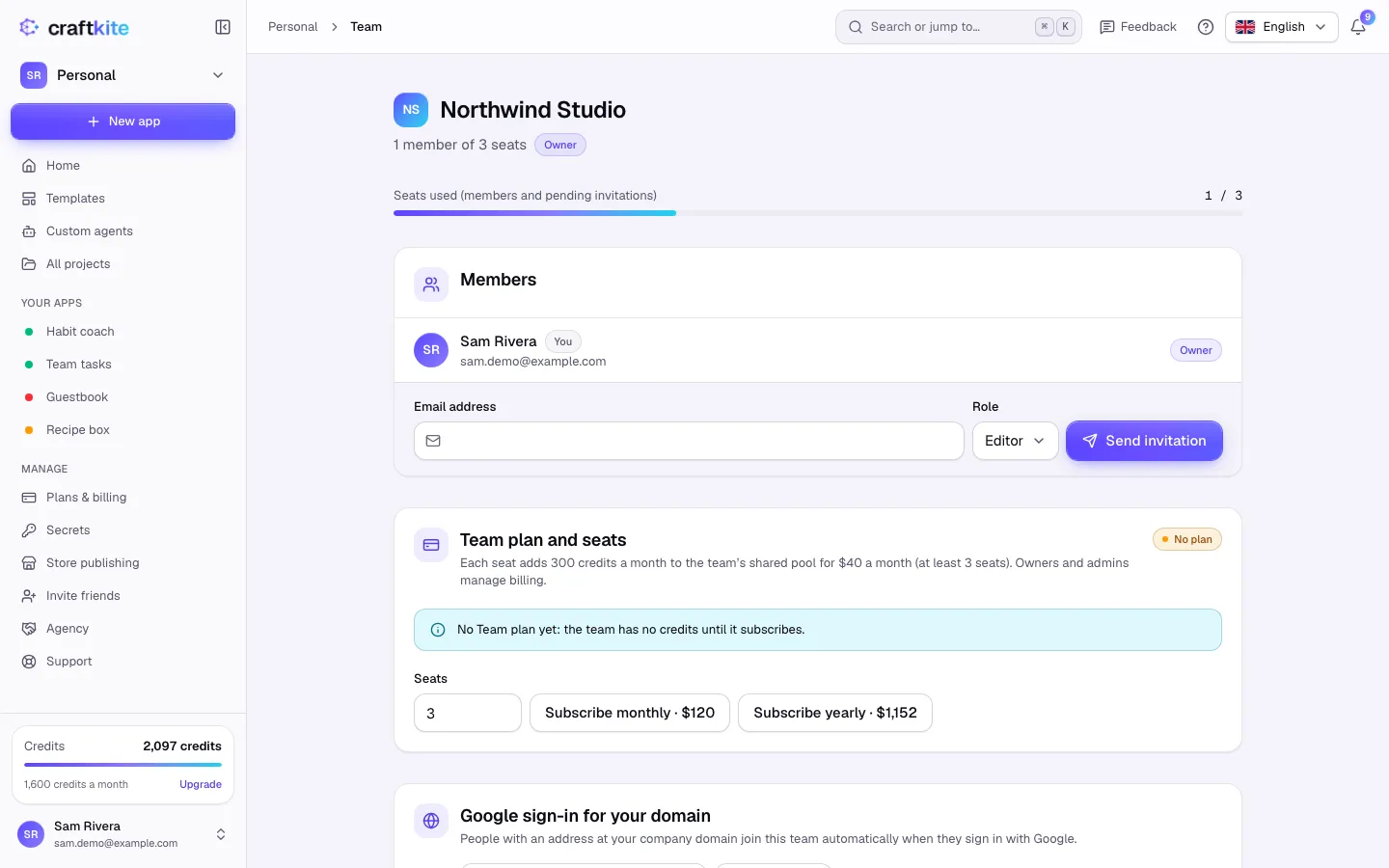
Steps to set up a team
- Open the workspace menu at the top of the side menu and choose + New team. Enter the Team name and click Create team.
- Under Team plan and seats, choose the number of Seats and subscribe monthly or yearly. Each seat adds credits to the team’s shared pool.
- Invite people: enter their Email address, choose a Role and click Send invitation.
Roles
- Owner – everything, including billing and deleting the team.
- Admin – manages members, settings, store accounts and the team’s agents.
- Editor – builds and changes projects.
- Viewer – opens projects and previews, but cannot start changes.
Working together
- Projects created while the team is selected belong to the team and use its credits.
- Comments on a project: start threads, type @ to mention a teammate (they are notified) and resolve threads when done.
- Companies can verify their email domain so that colleagues join automatically with Google sign-in, and can require it. Enterprise single sign-on (SAML or OpenID Connect) is available on request.
Owner actions
Transfer ownership to another member, or delete the team (cancel the Team plan first). Deleting a team deletes its projects and their published apps.