
How the Craftkite agent plans, builds and tests your app
By The Craftkite team ·
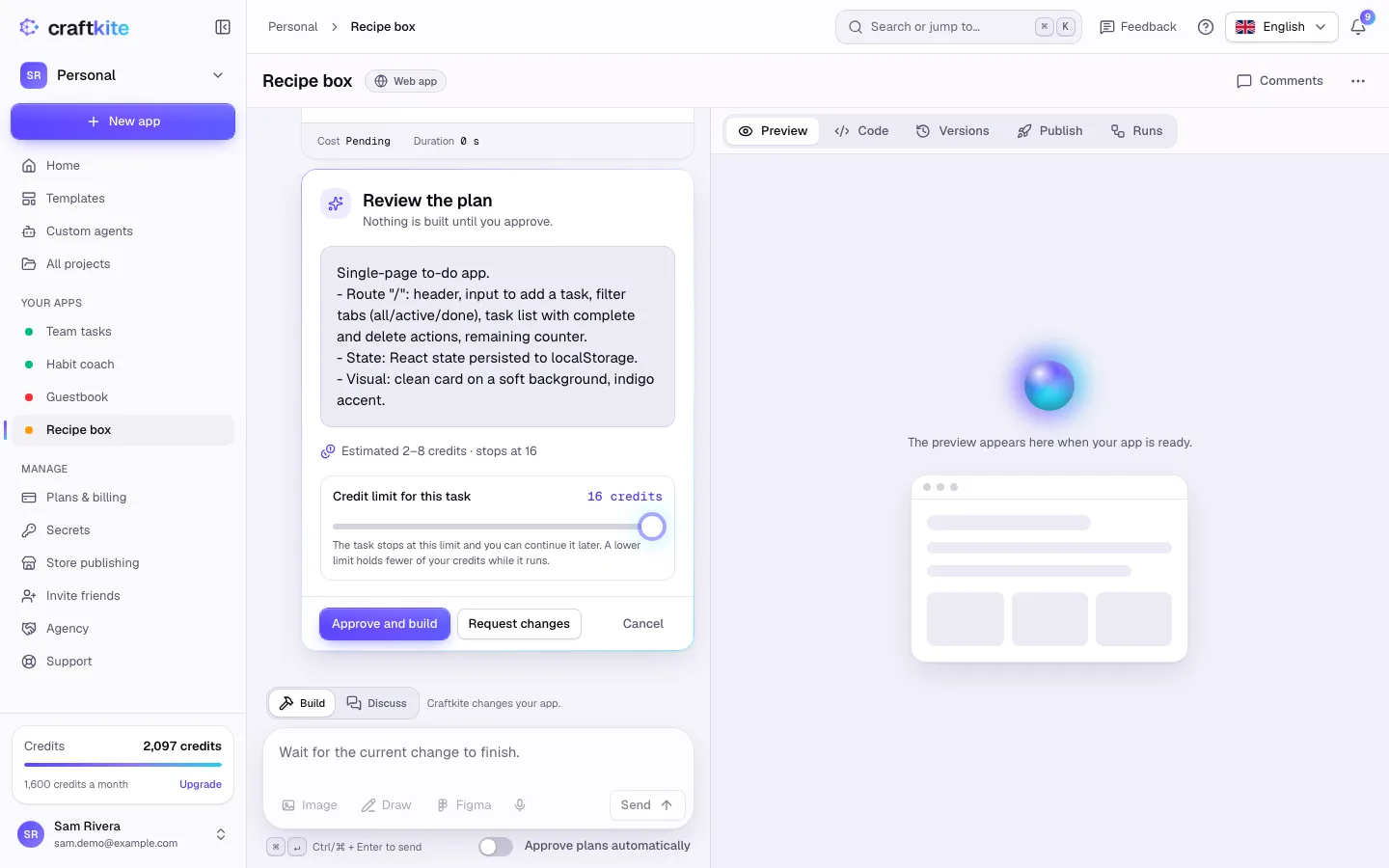
When you click Build it, a lot happens before your app appears in the preview. Here is what the agent does, step by step, and where you stay in control.
1. Plan
The agent first writes a short plan in your language: the pages, the data and the features. It also decides whether the app needs a database and sign-in. The plan comes with an estimate, for example “Estimated 2–8 credits”, and a credit limit you can adjust.
Nothing is built until you click Approve and build. If the plan misunderstood you, Request changes and it writes a revised one. For small changes you trust, you can let plans be approved automatically.
2. Write the code
After approval, the agent writes the code in an isolated workspace that belongs to your project only. You see the files it writes in the activity log as they happen. While it works you can send it a note (“use a blue header”), which it reads at its next step, or pause it.
3. Build, run and test
A program that compiles is not yet an app that works. So the agent builds the app, starts it and then tests it in a real browser: it plans a few steps, such as filling in a form and checking that the result shows up, and runs them. The test takes a screenshot you see in the task.
4. Repair
If the build fails, the app does not start or the browser test finds a problem, the agent reads the errors and fixes them, then tries again. Common problems, like a missing package or a wrong import path, are fixed automatically, and the task lists every automatic fix.
5. Save a version
When everything passes, the result is saved as a new version and the preview opens. If the task cannot finish, nothing half-done replaces your working app, and when the failure is on our side, the credits are refunded.
Staying within budget
Each task stops at its credit limit. If it gets there, everything written so far is kept and you can continue with a new limit. Credits are held only while a task runs; what is not used is returned.
After the build
Errors that appear later in the preview show up in a bar with a Fix it button, and you can ask questions about the code in Discuss mode. Read more in the help center: Review and approve the plan.