
Secure your account
Turn on two-step sign-in, manage your sign-in methods and signed-in devices, and change your password.
Updated October 12, 2026
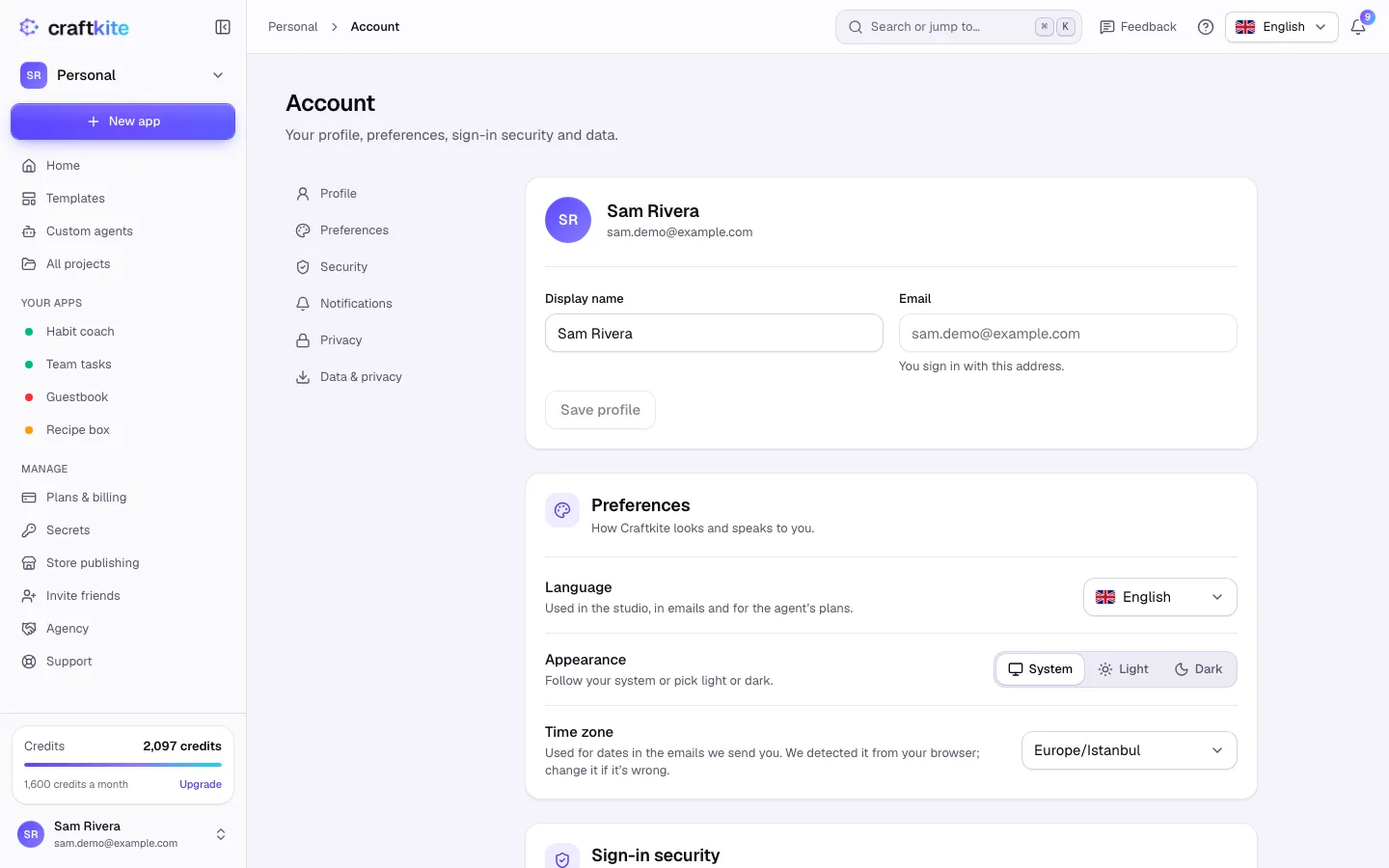
Open Account from the account menu and go to Security.
Turn on two-step sign-in
- Under Two-step sign-in, enter your Current password and click Turn on.
- Scan the QR code with an authenticator app (Google Authenticator, 1Password, Authy…) and enter the 6-digit code. Click Confirm.
- Save the backup codes somewhere safe. Each one signs you in once if you lose your phone.
Sign-in methods
Under Sign-in methods, see how you can sign in: email and password, Google, GitHub or Apple. Connect another one, or Remove one you no longer use; you always keep at least one. Signed in with Google only? Use Set a password to add a password too.
Signed-in devices
Signed-in devices lists where your account is signed in. Sign out of any device you don’t recognize, or Sign out all other devices.
Change your password
Enter your current password and a new one of at least 10 characters, then click Change password. Other devices are signed out.
Craftkite never asks for your password or codes by email or chat.