Websites
How to build a website by talking
Describe the site you want in plain words. Craftkite writes a plan, builds the site, tests it in a real browser and shows it to you in a live preview.
By Craftkite Academy2 min read
You do not need to write code or drag boxes around to get a website. In Craftkite you describe it the way you would explain it to a person, and the agent does the rest: it plans the pages, writes the code, runs the site and tests it before you see it. This guide walks through your first site from the empty home screen to a working preview.
1. Describe your website
Open the studio and go to Home. Under What do you want to build?, write what the site is for, who will use it and which pages it needs. Mention the look you want, such as colours, a light or dark theme or the tone of the texts. The more specific you are, the closer the first version gets.
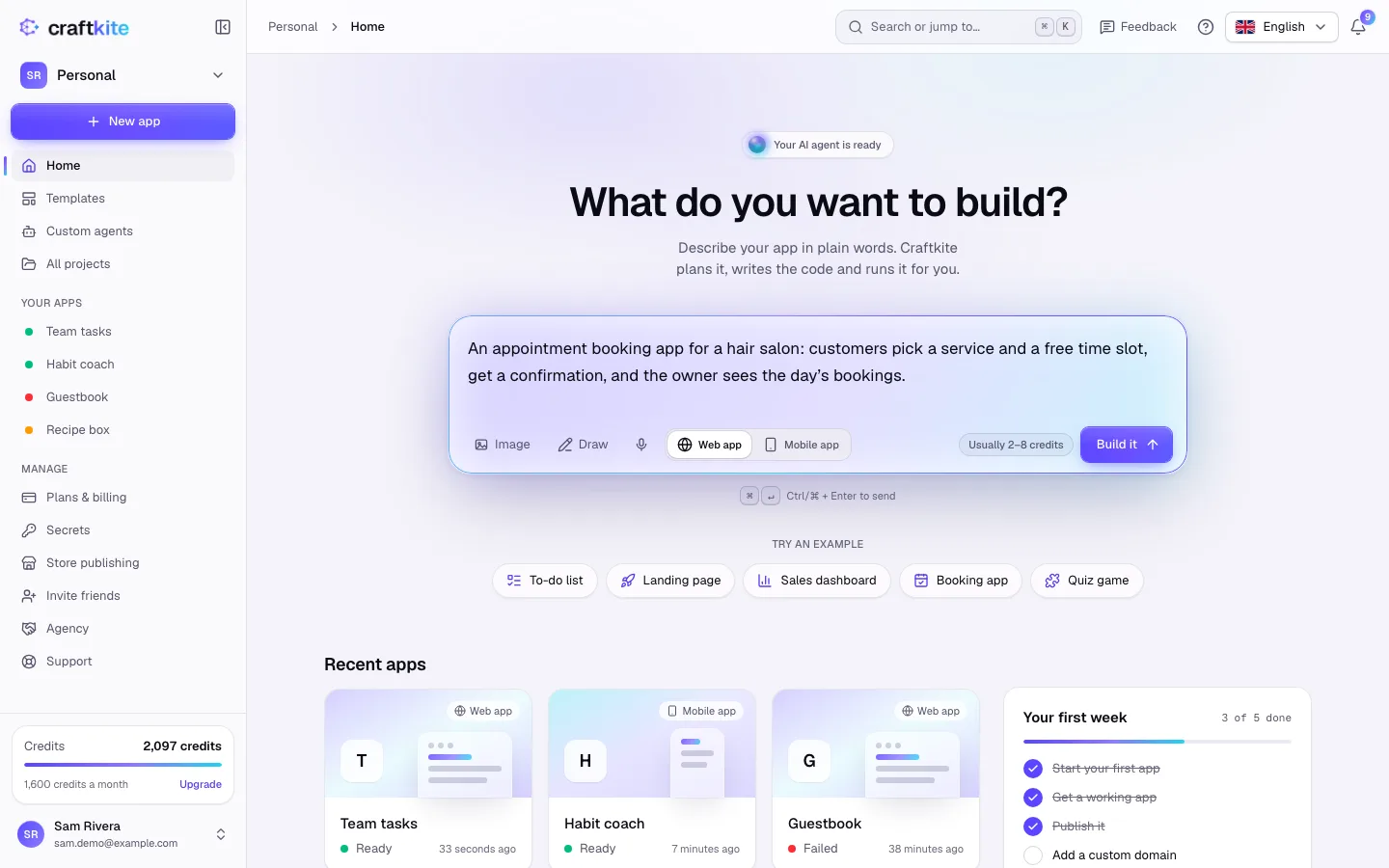
Not sure how to put it? Click one of the examples under Try an example, or start from a template. Next to Build it you see how many credits a request like yours usually takes.
2. Review and approve the plan
Click Build it (or press Ctrl/⌘ + Enter). Craftkite writes a short plan first, in your language: the pages, the data and the features it will build, with an estimate of the credits. Nothing is built before you approve.
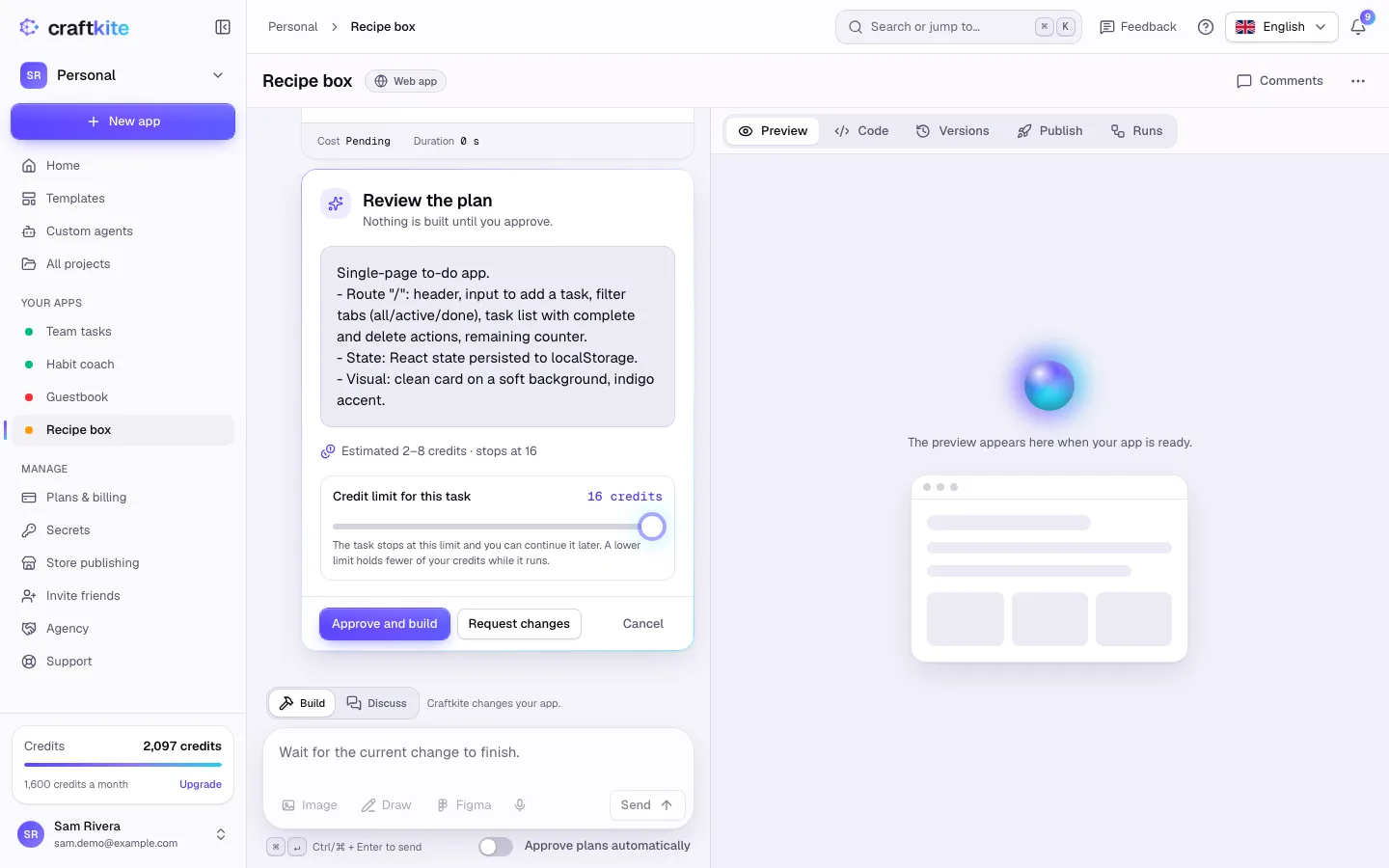
If something is missing, click Request changes and say what should be different, for example “add a contact form and a pricing page”. When the plan looks right, click Approve and build.
3. Watch it build and test
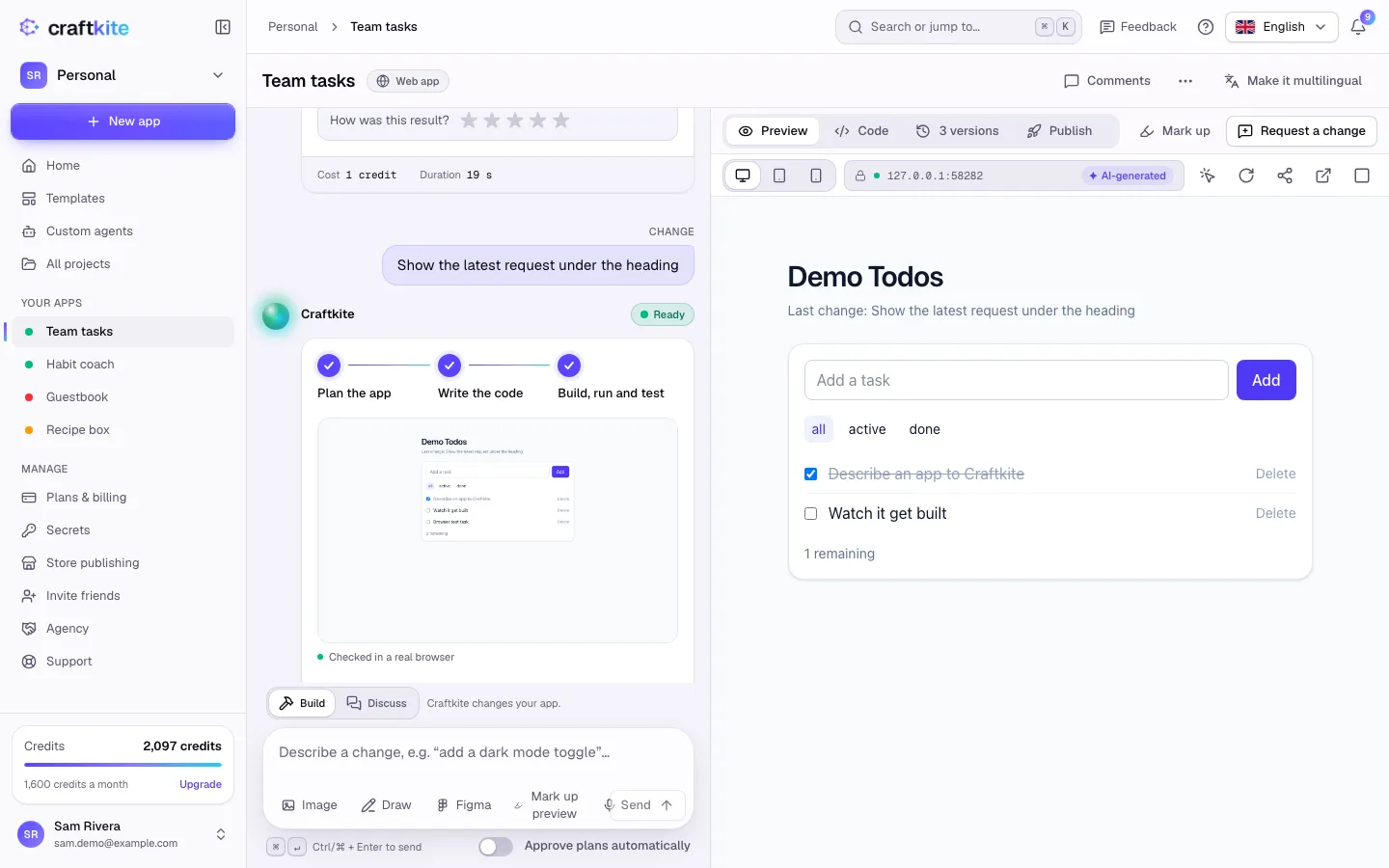
The agent works through Plan the app, Write the code and Build, run and test. It opens your site in a real browser, checks that the pages work and repairs problems on its own before it hands the result over. You can send it a short note while it works, or pause it.
4. Try it in the preview and keep talking
When the task shows Ready, your site runs in the Preview next to the chat. Click through it, then describe the next change in the chat: “make the header sticky”, “add a blog section”, “use our logo”. Every finished change is saved as a version, so you can always go back.
5. Publish it
Open the Publish tab and click Publish to put the site online at its own address. Later you can add your own domain; see How to publish your app and use your own domain.
Tips for a better first version
- Say who the site is for and what a visitor should do: book, buy, sign up or get in touch.
- List the pages you need, in the order they matter.
- Ask for one change at a time once the first version is ready: small, clear requests are faster and cheaper.
Questions about this guide
Do I need to know how to code?
No. You describe what you want in plain words and approve a plan. You can open the code editor if you want to, but you never have to.
What does it cost to build a website?
Building uses credits. The studio shows the usual range before you start, and each task shows what it actually used. If a task fails because of us, its credits are returned automatically.
Can I change the site after it is built?
Yes. Describe each change in the chat. Every change becomes a version you can restore at any time.
Is my project private?
Yes. Your projects, preview and code are private to you. Only an app you publish is public to people with its link.