
API keys, the Craftkite API and MCP
Build, change and publish apps from your own scripts, tools and AI assistants with an API key, over the REST API or the MCP server.
Updated October 22, 2026
The Craftkite API lets your own code do what you do in the studio: create apps from a description, send messages, approve plans, follow the build, open the preview, publish, export the code, scan for security issues and create documents. The MCP server offers the same actions as tools, so an AI assistant that supports MCP can use Craftkite for you.
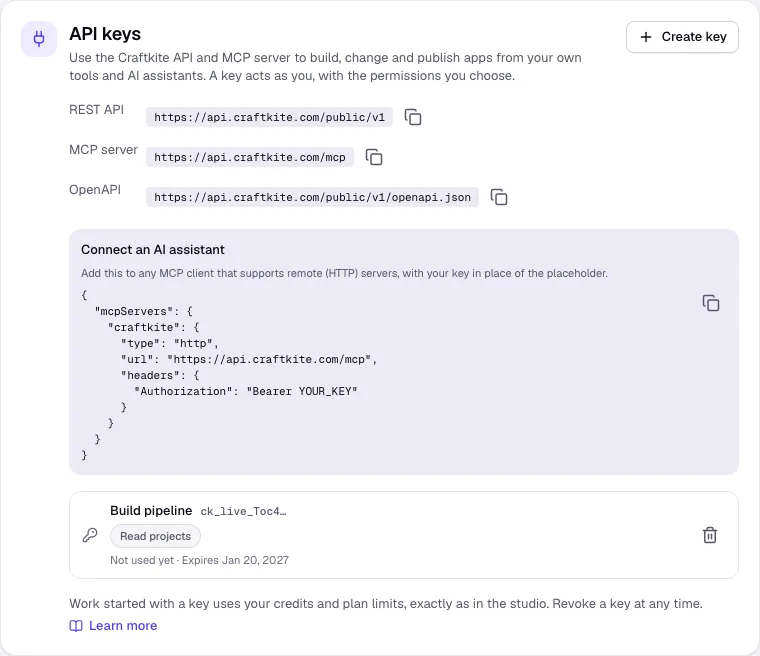
Create a key
- Open Account and go to API & MCP.
- Click Create key, give it a Name (for example “build pipeline”) and choose its Permissions:
- Read projects: list projects, tasks, previews, publishes and security scans.
- Build and change: create apps, send messages and approve plans (uses credits).
- Publish, Export code and Documents.
- Choose when it Expires, and, if you own or manage a team workspace, whether it is For your personal projects or the workspace’s.
- Copy the key. It is shown only once; Craftkite stores only a fingerprint of it.
Revoke a key at any time with the bin icon: tools using it stop working at once. API keys come with the paid plans.
Use the REST API
Send the key in the Authorization header as a Bearer token. The REST API address and the OpenAPI description are shown under API & MCP. A typical flow:
POST /projectswith apromptcreates the app; the answer includes its first task.GET /tasks/{id}(or the live events at/tasks/{id}/events) until the status isawaiting_approval; the task shows the plan and its credit quote.POST /tasks/{id}/approvebuilds it.POST /projects/{id}/previewreturns the preview address.POST /projects/{id}/deploymentspublishes it. If the security scan finds a critical issue, the answer issecurity-critical; publish again withconfirmSecurity: trueto go ahead.
Connect an AI assistant (MCP)
Add the MCP server address to any MCP client that supports remote (HTTP) servers and send your key as a Bearer token. The assistant sees tools such as create_project, send_message, wait_for_task, approve_plan, get_preview_url and publish_project, limited to your key’s permissions.
Credits and limits
Everything a key starts uses your credits and plan limits, exactly as in the studio: each build shows its quote first and never costs more than the quote you approve. Reading, previews, security scans and exports are free. Keys have their own request limits; when you send too many requests, the answer says how many seconds to wait.