
Your app’s database
Apps that save data get their own database. Browse and edit tables, manage users and files, and keep development and live data apart.
Updated October 12, 2026
When your app needs to save data, such as accounts, posts or orders, Craftkite adds a database and sign-in to it. The Database tab appears in the project.
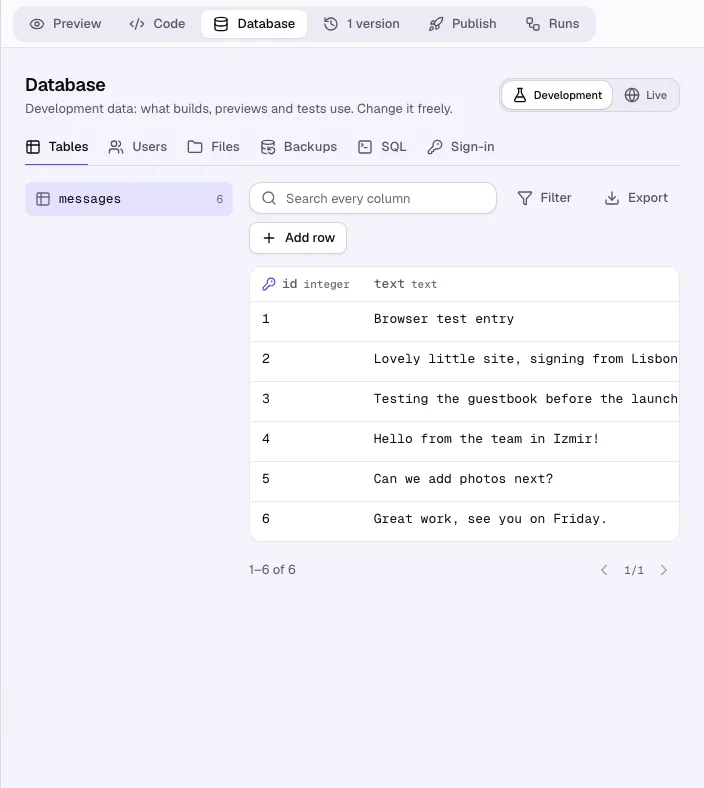
Development and live data
Every app with a database has two:
- Development – what builds, previews and tests use. Change it freely.
- Live – what your published app’s users see and create. It exists after you publish.
Switch with Development and Live at the top of the tab. When you look at live data, a notice reminds you that your users see changes right away.
Steps to change data
- Open Database → Tables and choose a table.
- Search every column, or click Filter to add conditions (equals, contains, is empty…).
- Click a row to open it, change fields and click Save changes, or Delete row.
- Click Add row to add one; optional fields left empty use their default.
- Use Export to download the table as CSV or JSON.
The other sections
- Members – people who signed up to your app or whom you invited, with roles, password help and suspension. See Manage your app’s members.
- Server – keep the data on your own PostgreSQL server. See Use your own database.
- Files – files your app’s users uploaded.
- Backups and SQL – see Backups, exports and the SQL console.
- Sign-in – email and password is always on; you can add Google or GitHub sign-in with an OAuth app from your own account.
No database yet? Ask for something that needs to save data and Craftkite adds one.