Backups, exports and the SQL console
Restore your app’s data from a backup, export the whole database and run SQL on plans that include the SQL console.
Updated October 12, 2026
The Backups and SQL sections of the Database tab protect and open up your app’s data.
Backups
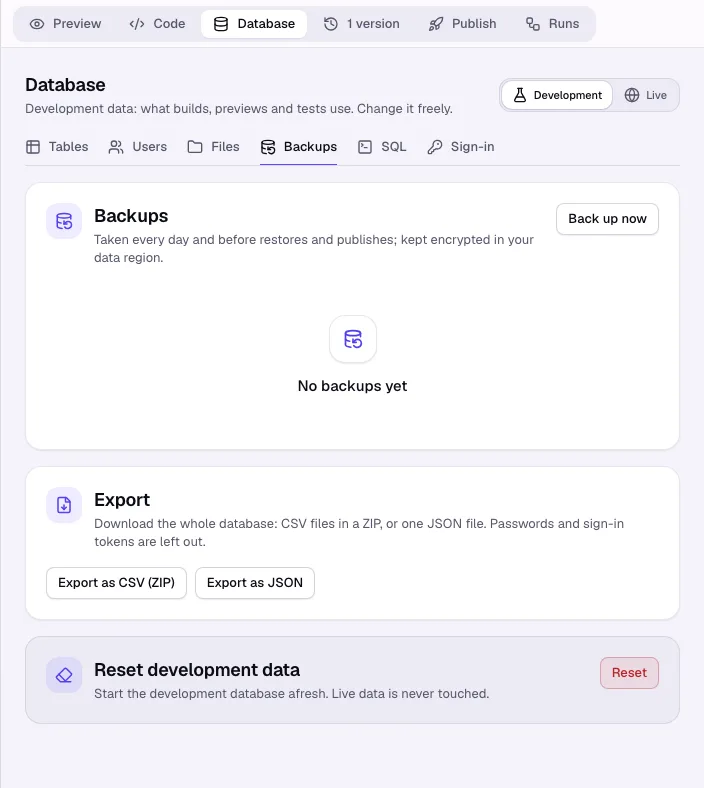
Backups are taken every day and before restores and publishes, and are kept encrypted in your data region. Click Back up now for one of your own.
Steps to restore
- Choose Development or Live at the top of the tab.
- Open Backups and click Restore next to the backup you want.
- Type RESTORE to confirm. The data as it is now is backed up first, so you can go back.
Restoring live data removes the changes your users made since that backup.
Export
Under Export, download the whole database as CSV (ZIP) or JSON. Large exports are prepared in the background and appear under Exports and restores. Passwords and sign-in tokens are left out.
Reset development data
Reset development data starts the development database afresh (a backup is taken first); live data is never touched. Tick Start from a copy of the live data to test with real data.
SQL console
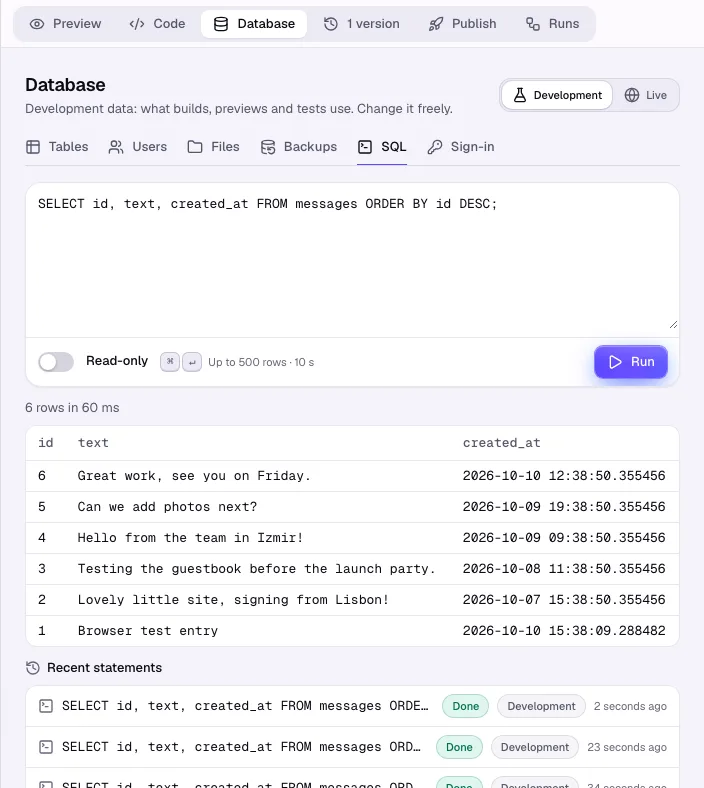
On plans that include the SQL console (see Pricing), SQL runs statements against your app’s data.
- Write a statement and click Run. Results show up to a row limit and a time limit.
- Statements are Read-only by default. Switch to Writes allowed to change data; the console says whether it changes development or live data.
- Recent statements lists what you ran.