
Describe with your voice, images and sketches
Dictate a request, attach screenshots, draw a sketch or mark up the preview to show what you mean.
Updated October 12, 2026
Words are not the only way to explain an idea. Next to the message box you find several ways to show Craftkite what you mean.
Attach images
Click Image (or drop files on the message box) to attach up to three images: screenshots, mock-ups or brand colors to copy. PNG, JPEG and WebP work.
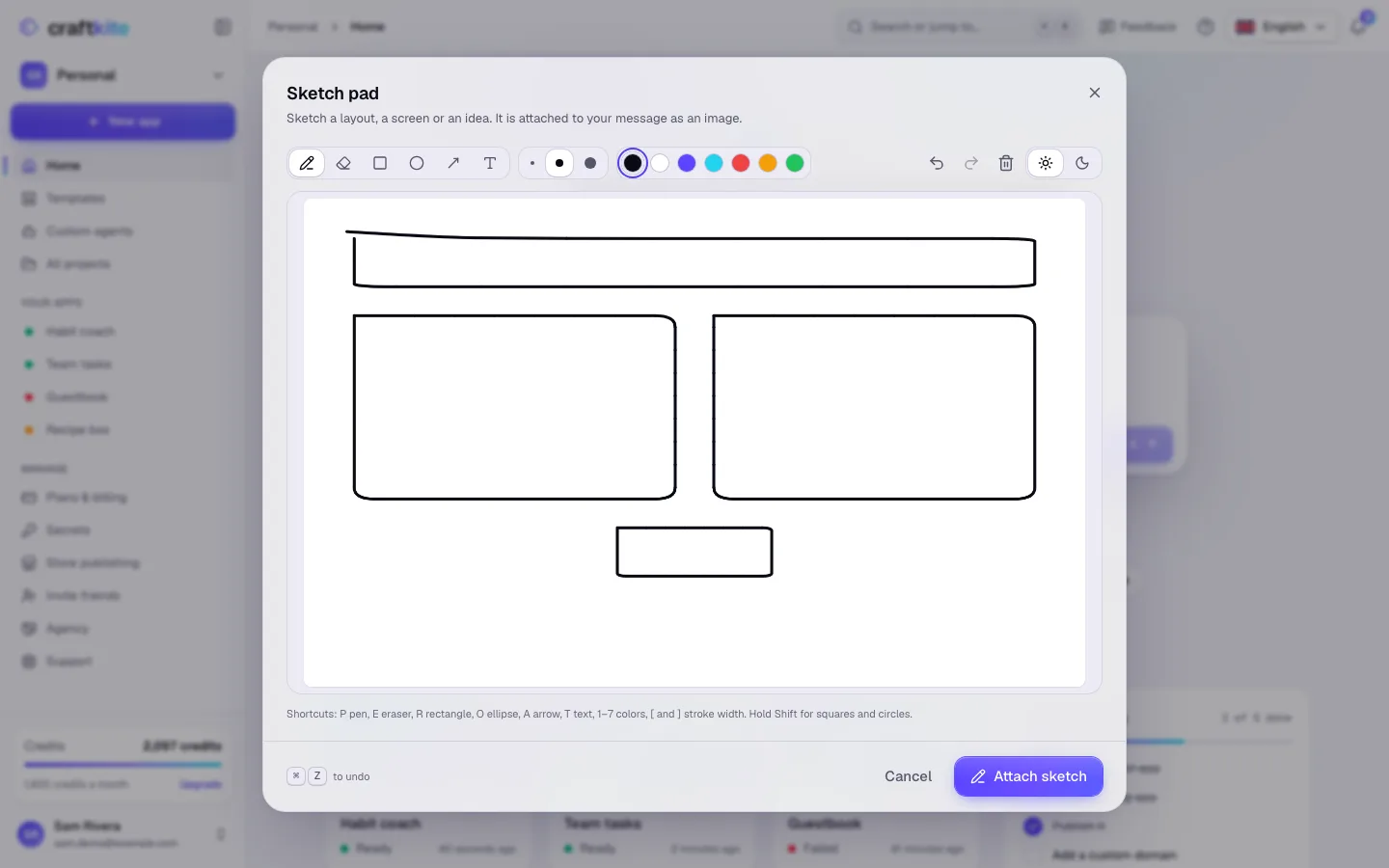
Draw a sketch
- Click Draw to open the Sketch pad.
- Sketch a layout with the pen, rectangles, ellipses, arrows and text labels. Shortcuts: P pen, E eraser, R rectangle, O ellipse, A arrow, T text.
- Click Attach sketch. It is attached to your message as an image.
Mark up the preview
After a successful build, click Mark up (or Mark up preview in the chat). Circle, point at and label parts of the latest preview screenshot, click Attach mark-up and describe the change in your message.
Dictate
- Click the microphone (Dictate) and speak.
- Click Stop dictation. Your words appear in the message box, where you can edit them before sending.
The recording is deleted as soon as it is turned into text; it is never stored. Dictation may use a small number of credits per minute; the studio shows the price next to the button. If the microphone is blocked, allow it in your browser’s site settings.