
Invite collaborators to a project
Build a project with others on a paid plan, without a team workspace: invite by email, choose what they can do and how many of your credits they may use.
Updated November 21, 2026
On a paid plan you can invite people to work on one of your projects with you — no Team workspace needed.
Invite someone
- Open the project and click Share.
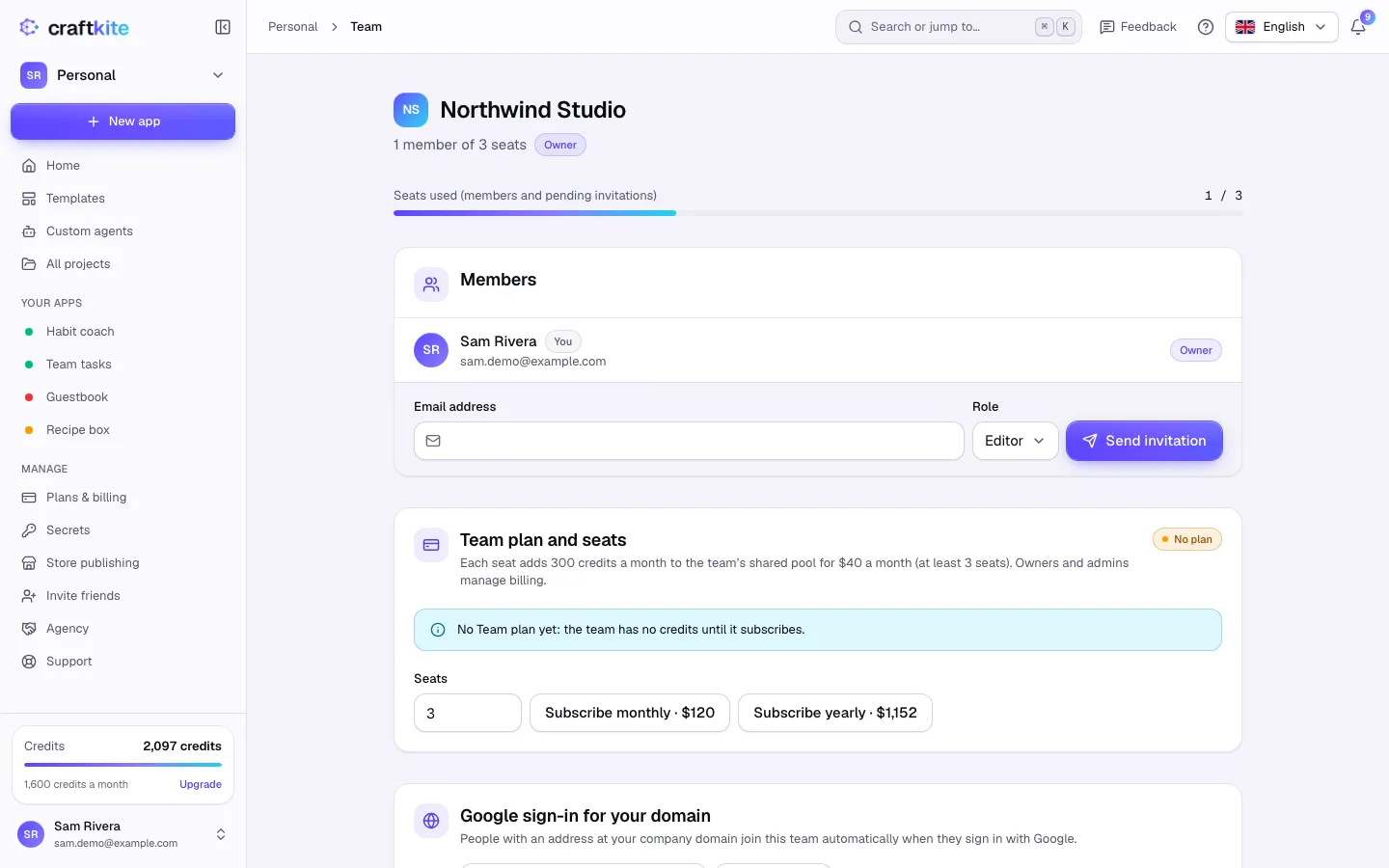
- Enter their email address and choose Can build (messages, plans, code, comments) or Can view (the app, its preview, versions and comments).
- Optionally set a Monthly credit limit: the most of your credits this person may use on the project each month.
- Click Send invitation. They get an email and, if they already have an account, a notification. The invitation is valid for 7 days and only for that address.
Your plan sets how many collaborators each project can have; the pricing page lists them per plan.
What collaborators see
- Only the project you shared — never your other projects, your billing, your secrets or your plan.
- A note that they work on your credits, with their monthly limit.
- Publishing, domains, data, integrations, exports and the project’s settings stay with you.
- Collaborators who can build also use Discuss, continue a change that reached its limit, Try again and Fix it — always on your credits and within their monthly limit; they see what their limit leaves, never your balance.
Manage collaborators
In Share you see everyone, their role and the credits they used this month. You can change a role, set a limit, make someone read-only, revoke an invitation or Remove a person — removal is immediate, including their access to the preview. The Activity list shows every invitation and change.
When your plan changes
If you move to a plan with fewer collaborators, the most recent ones above the new limit become read-only. Choose who stays active in Share: make one person read-only, then make another active.
When you upgrade again, collaborators the plan made read-only become active automatically up to the new limit, the longest-standing first, and you get a notification. People you made read-only yourself stay read-only.