
Custom agents
Save your design system, preferred libraries and rules once, and pick the agent when you start an app so every build follows them.
Updated October 12, 2026
A custom agent is a saved set of instructions that Craftkite follows on every build of the apps that use it: your brand colours and fonts, preferred libraries, code style, testing rules or tone of the interface. Teams share agents, so everyone builds the same way.
Custom agents are part of the plans that include them (see Plans); without them the page shows how to upgrade.
Create an agent
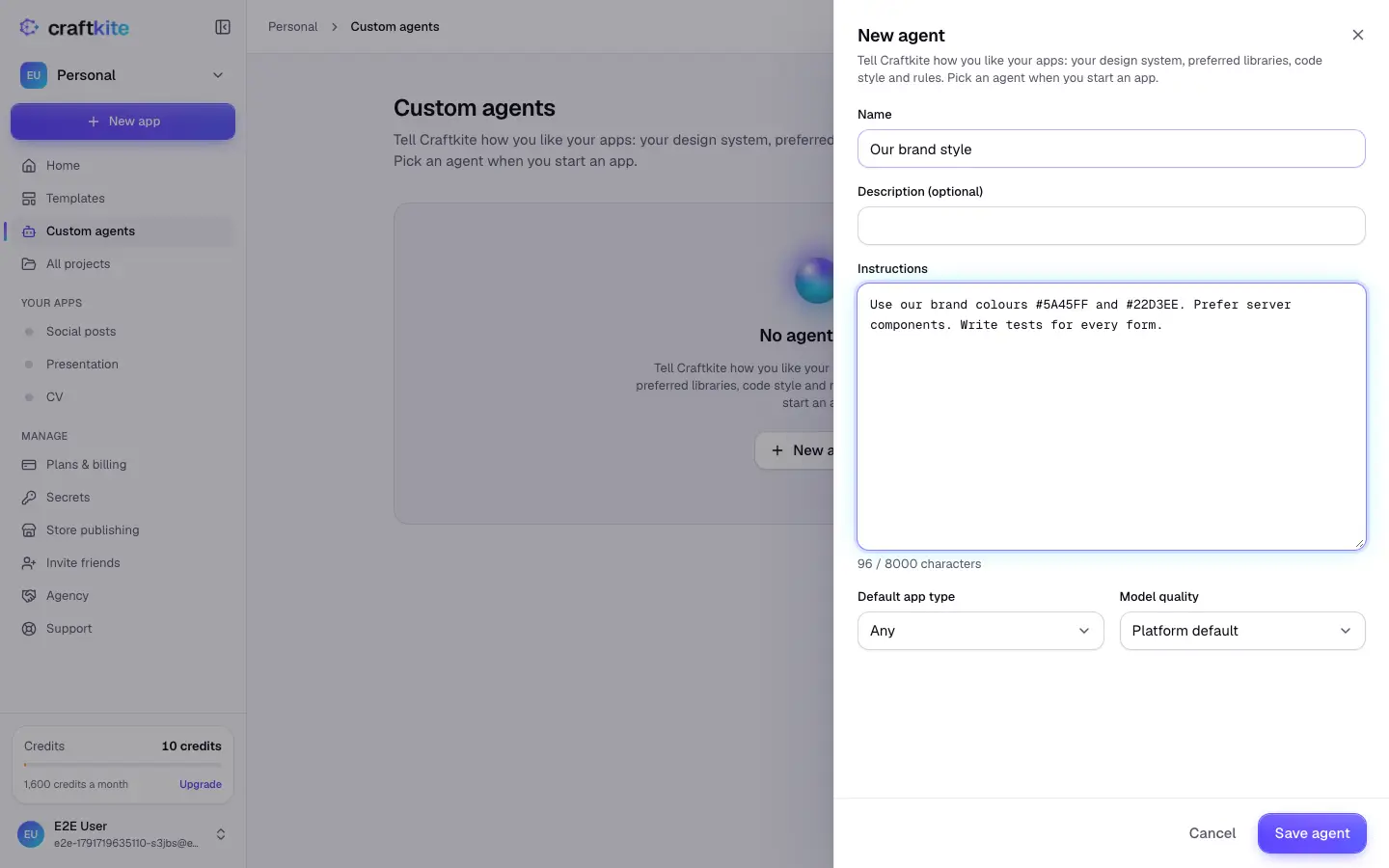
- Open Custom agents in the side menu and click New agent.
- Give it a Name and, if you like, a Description.
- Write the Instructions, for example: “Use our brand colours #5A45FF and #22D3EE. Prefer server components. Write tests for every form. Keep components under 150 lines.” The counter shows how much room is left.
- Choose the Default app type (any, web or mobile) and the Model quality: the platform default, balanced, quality first or economy.
- Click Save agent.
Instructions are checked against the acceptable-use policy; ones that break it cannot be saved.
Use an agent
When you start an app on Home, choose the agent next to the description field. Every task of that app (the plan, the build and later changes) follows its instructions. Apps that used an agent keep their code if you change or delete the agent later.
In a team
In a team workspace the agents belong to the team. Owners and admins create and change them; every member can use them.
Tips
- Write rules, not wishes: “Buttons are 44 px high” works better than “nice buttons”.
- Keep one agent per style or client rather than one very long agent.
- Instructions guide the AI; they do not replace reviewing the plan before you approve it.