
Edit visually and fix errors in one click
Select an element in the preview to change its text, colors and spacing, and let Craftkite repair errors the preview reports.
Updated October 12, 2026
Small changes do not always need a request. In a web app’s preview you can select an element and edit it directly, and when the preview reports an error, one click asks Craftkite to fix it.
Edit an element
- In the Preview tab, click Select an element to edit (the pointer icon above the preview).
- Click the element in the preview. Press Esc to cancel.
- The Selected panel opens. Change the Text, Text colour, Background, Padding or Margin and click Apply.
- Changes show in the preview right away and are saved with your next version.
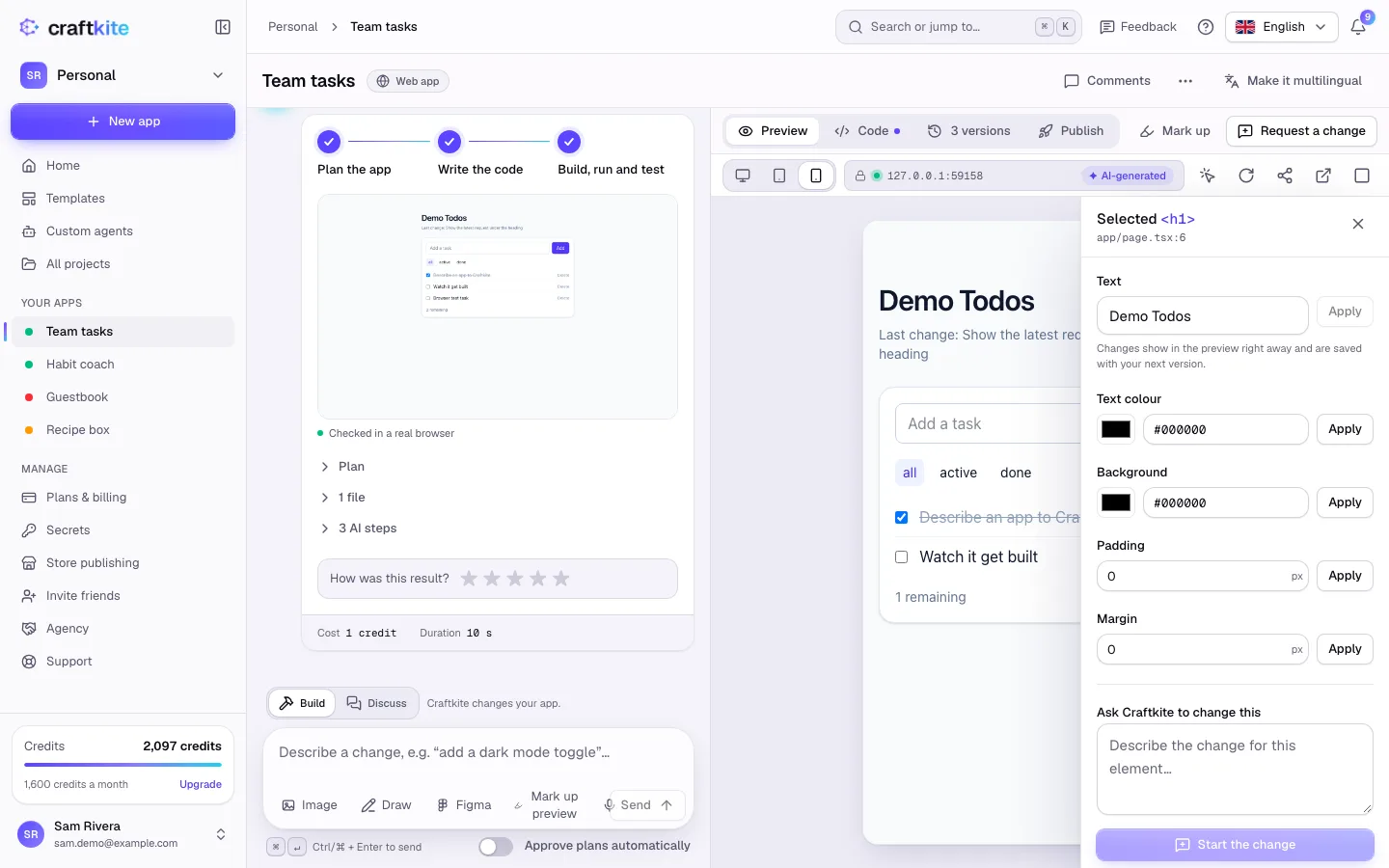
For anything bigger, write in Ask Craftkite to change this and click Start the change: Craftkite knows exactly which element you mean.
Fix errors with one click
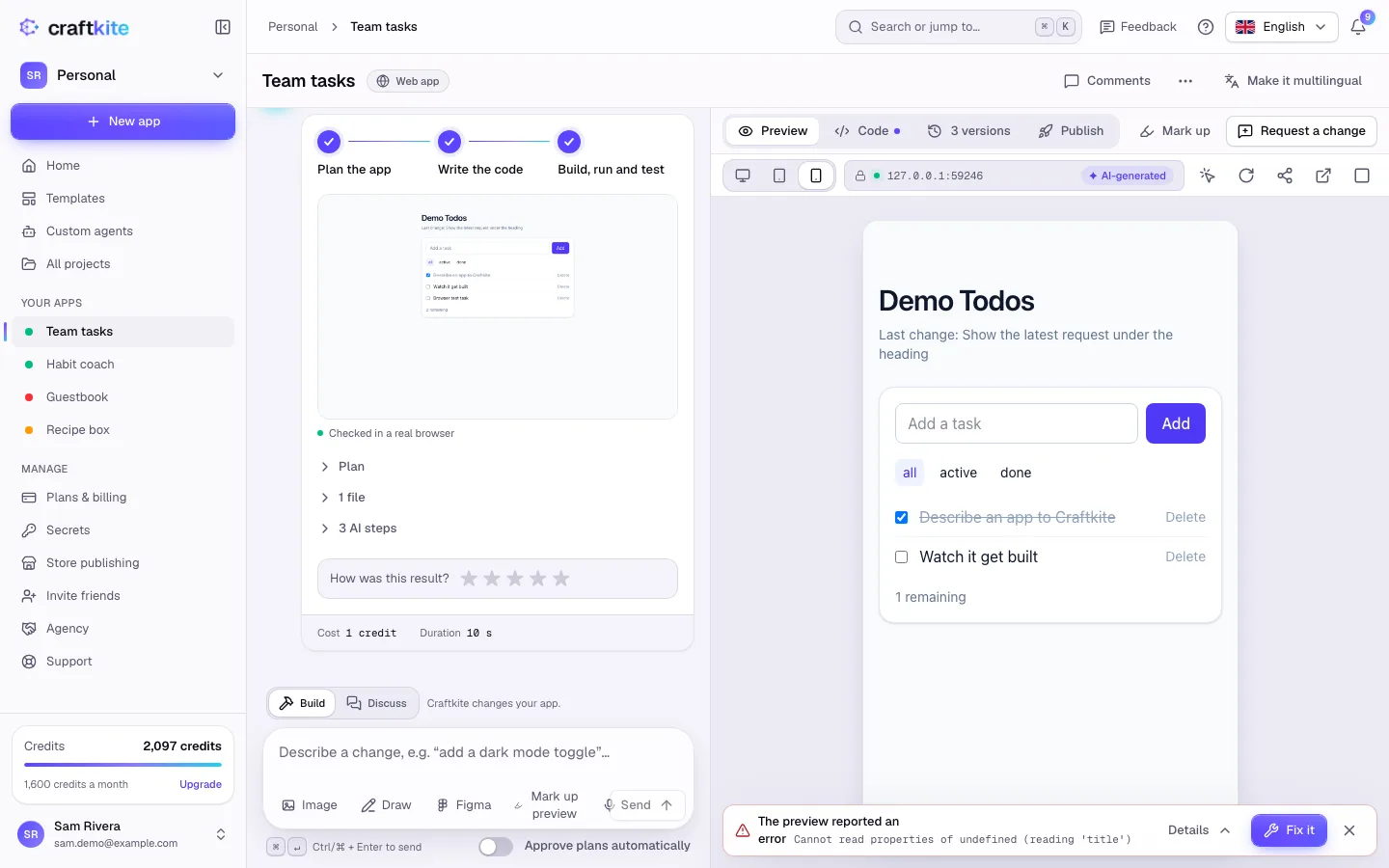
When the app throws an error in the preview, a bar appears below it: “The preview reported an error”.
- Click Details to see the message.
- Click Fix it. Craftkite starts a change that repairs the error, like any other change.
- Click Dismiss if you want to ignore it.
Good to know
- Visual editing works on web apps while the preview runs.
- If the code changed since you selected an element, select it again.
- While a change is running, edits wait until it finishes.