
Versions and restoring an earlier one
Every finished change is saved as a version; see what changed, undo, restore or duplicate from any of them.
Updated October 12, 2026
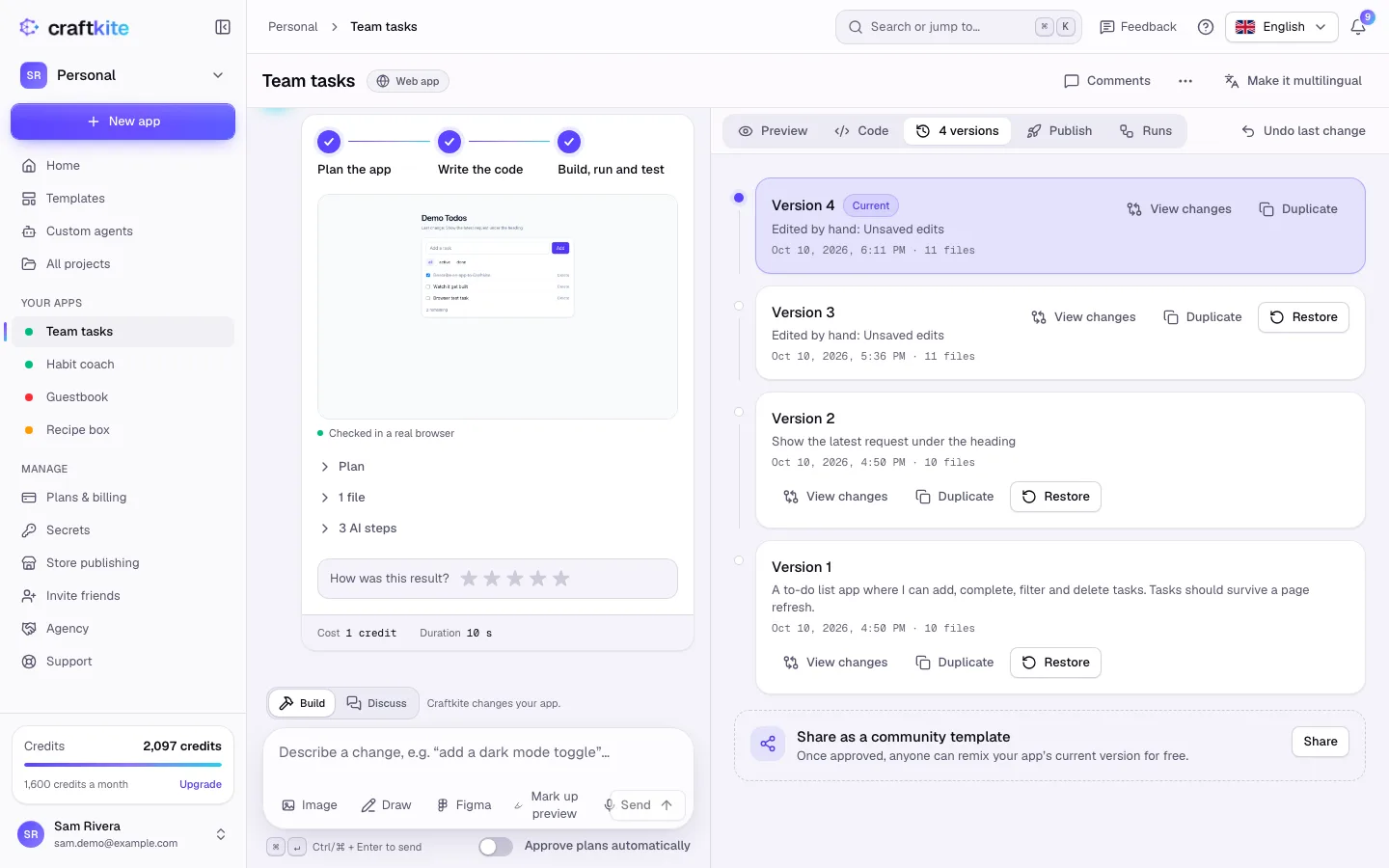
Each change Craftkite finishes, and each version you save from the code editor, is kept in the Versions tab.
Steps to go back
- Open the Versions tab.
- Click View changes to see which files were added, changed or removed.
- Click Restore on the version you want. The project goes back to it; the newer versions stay in the list, so you can move forward again.
- To take back only the latest change, click Undo last change.
Restoring does not use credits.
Duplicate from a version
Duplicate creates a new project that starts from that version’s files, for example to try a different direction. No credits are used.
Data and versions
For apps with a database, restoring can offer to restore the development data of that time too (Restore the data too?). The data as it is now is backed up first. Live data is never changed by restoring a version.