
Find your way around the studio
The chat, the preview and the project tabs, preview sizes and the shortcuts that save time.
Updated October 12, 2026
Each project opens in the studio: the conversation with Craftkite on the left, your app on the right.
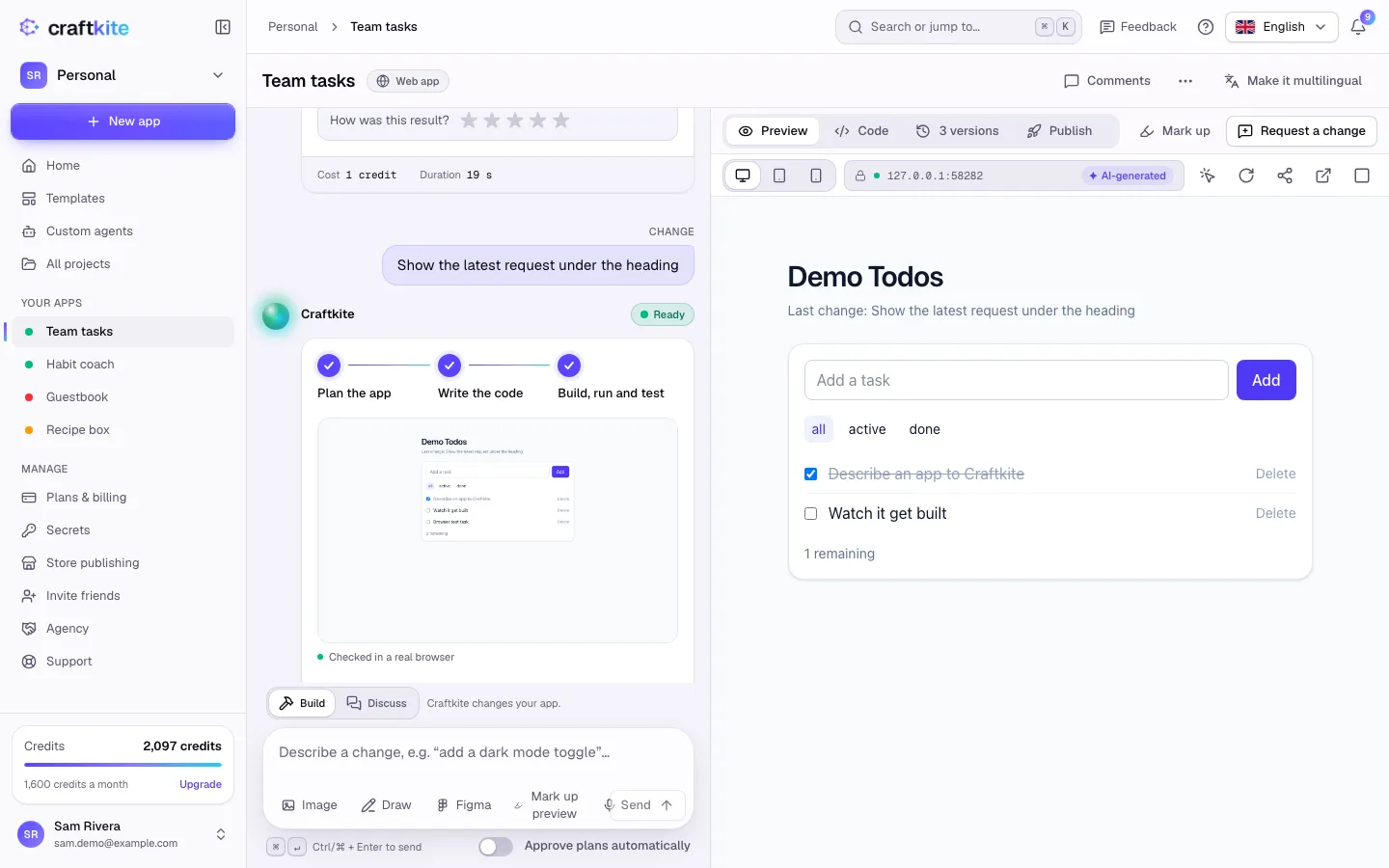
The project tabs
- Preview – your app, running. Use it like your users will.
- Code – the files of the app, with an editor. See Code, files and images.
- Database – the app’s data, for apps that save data. See Your app’s database.
- Versions – every saved version, with restore and undo.
- Publish – put the app online, custom domains, integrations, code export and environment variables.
- Runs – builds, publishes and store releases that ran in the background, step by step.
Preview sizes
Above a web app’s preview, switch between Desktop, Tablet (768 px) and Phone (390 px) to check every screen size. Mobile apps always preview in a phone frame.
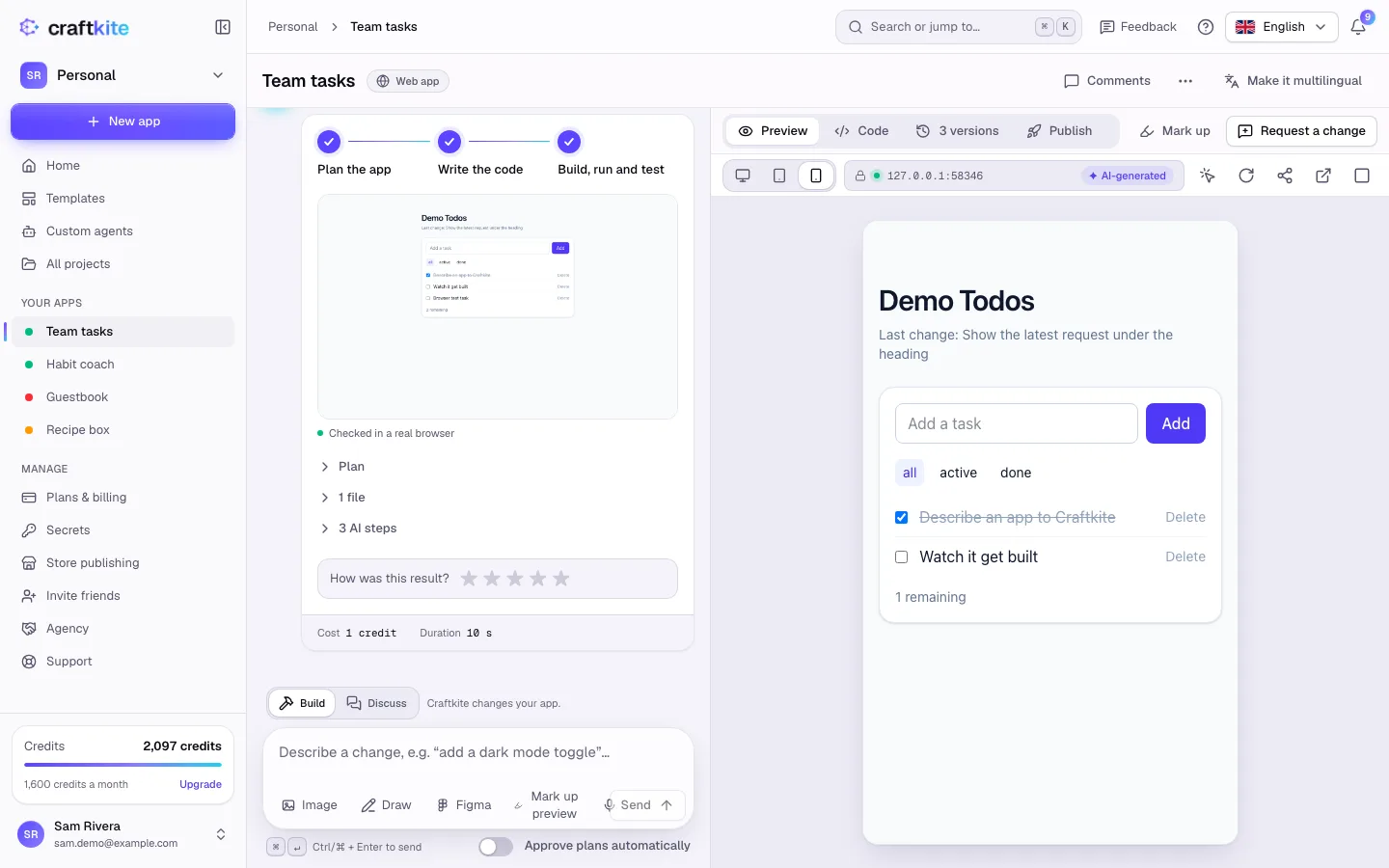
Steps to review a change
- Wait for the task to show Ready; the preview reloads on its own.
- Click through the app in the preview. Reload preview starts it again from the first page.
- To show the app to someone without an account, use Copy a private preview link. The link expires soon.
- Click Request a change to describe the next change by typing, speaking, drawing or marking up the preview.
Shortcuts
- Ctrl/⌘ + K opens the command palette: jump to any app, page or setting.
- Ctrl/⌘ + Enter sends a message.
- The ? in the top bar opens the help article for the page you are on.