
Code, files and images
Read and edit your app’s code, upload images and fonts, and save your edits as a version.
Updated October 12, 2026
Your app is a standard project. The Code tab shows its files, and you can change them yourself; Craftkite builds on your edits.
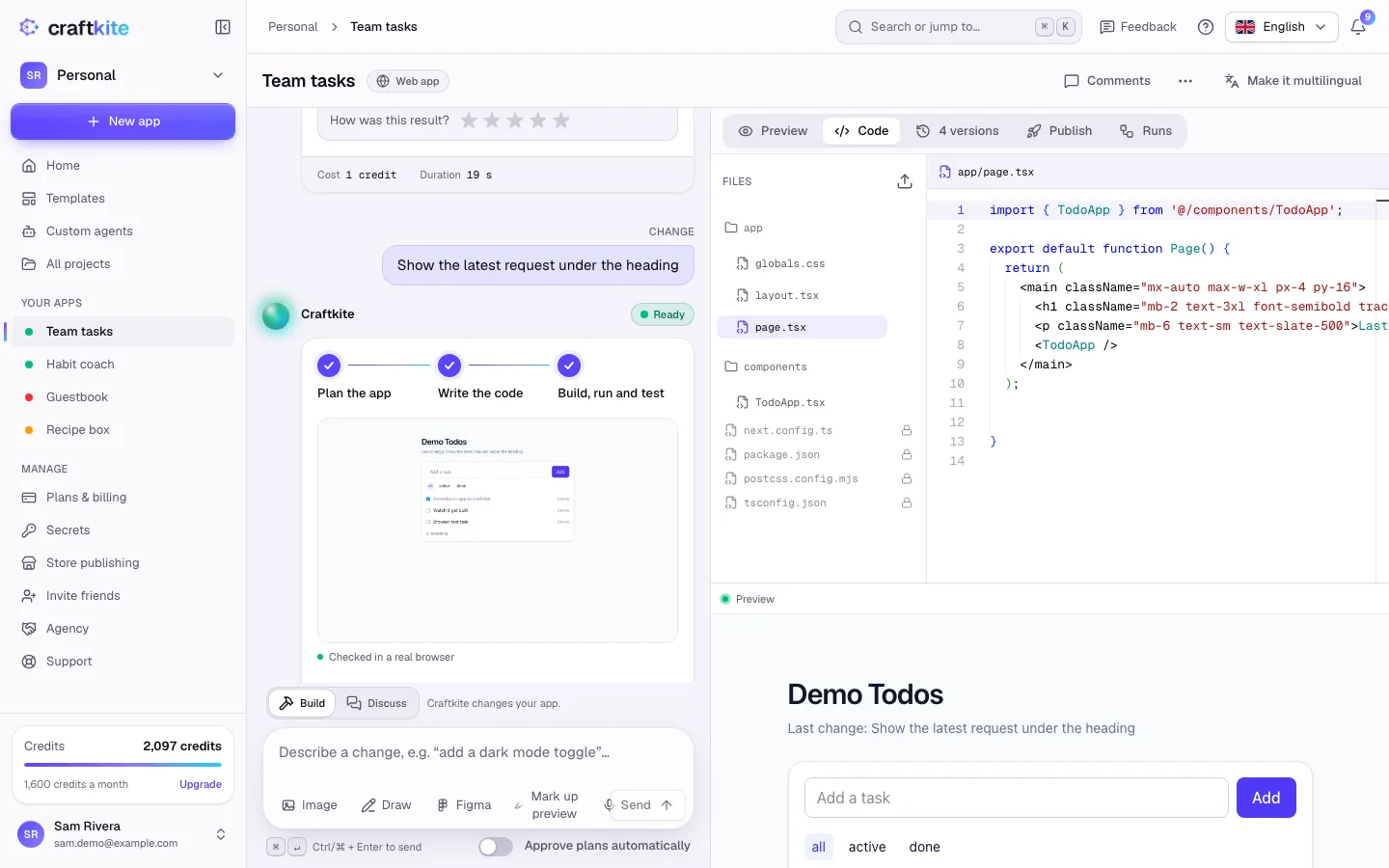
Edit code
- Open the Code tab and pick a file under Files.
- Edit it. The preview updates as you type (Live in preview).
- A banner says “You have edits that are not saved as a version yet.” Describe your edit (optional) and click Save version, or click Discard edits.
Files with a lock are managed by Craftkite (for example package.json) and are read-only. Editing is paused while Craftkite works on a change.
Upload images, fonts and documents
- Click the upload icon next to Files.
- Choose images, fonts, SVG or PDF files. They go to the app’s
public/folder and a new version is saved. - Use a file’s menu to Rename or move or Delete it. Code that refers to the old path needs updating too.
Uploads are checked: SVG and PDF files with scripts are refused, and each app has a total file space.
Good to know
- Deleting a file creates a version, so you can undo it from Versions.
- Prefer to work in your own editor? Sync the project with GitHub or download it as a ZIP: see GitHub and ZIP export.