Store pre-review
Craftkite checks your mobile app for what App Review and Google Play reject most often, holds a release with blocking issues and fills in the store questionnaires.
Updated November 22, 2026
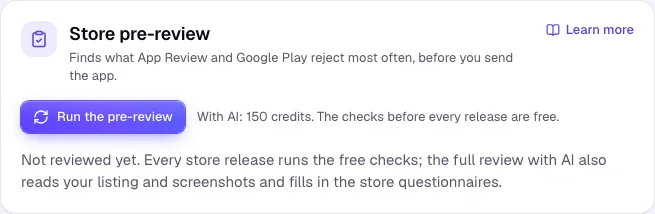
Most store rejections come from a short list of rules: a missing privacy policy, no way to delete an account, Google sign-in without Sign in with Apple, vague permission texts, digital goods sold by card, placeholder text or a web page in a frame. The Store pre-review finds them before you send the app. Open the mobile project’s Publish tab, then App stores → Store pre-review (in the Craftkite app: the project’s store screen → Open the store pre-review).
Two layers
- Checks (free): the saved version is read for the store rules: privacy page, account deletion, Sign in with Apple, permission texts, the app’s store profile, payments for digital goods, card fields, placeholder content, links to screens that do not exist, a web view as the whole app, user content without Report and Block, tracking without App Tracking Transparency and location in the background. Craftkite also opens your privacy and account deletion pages on the live address and checks that the live backend knows your iOS bundle ID for Sign in with Apple.
- Review with AI (credits): click Run the pre-review. The AI reads what the app was built for, its screens, your store texts and screenshots against Apple’s App Review Guidelines and Google Play’s policies, and names the guideline for each finding. The price is shown next to the button and in the credit table; nothing is charged when it fails.
Each finding says which store it concerns, the guideline (for example “Apple 5.1.1(v)”), whether it is Blocking (review would most likely reject the app) or a Warning, and what to change.
Fix it
Select findings (or none for all) and click Fix with Craftkite. They become one change request: you see its price, approve it, and Craftkite changes the app. Findings marked Needs your action are not code changes, such as publishing the app again or entering a privacy policy address in the store listing.
Before every release
Every store release runs the free checks on the version it builds. When they find blocking issues, the release waits and asks: Show the issues or Send anyway. Sending anyway is your decision and is recorded in your account’s audit log. Automatic store releases stop instead and tell you why.
Bundle and start check
Before a store build starts, Craftkite makes your app’s production bundle for the phone, with the same settings the store build uses, and opens its first screen. If the code cannot be bundled or the first screen crashes, the release stops before the build: nothing is built, your credits are refunded, and the release shows the first error lines with Fix with Craftkite, which sends them to the builder as a change you approve. The store pre-review runs the same check and shows a failure as a Blocking finding, so you see it before you pay for a build; automatic store releases are held until it is fixed.
Store questionnaires
With the review come the answers App Store Connect and Play Console ask for, derived from the app’s code, each with a Copy button:
- App Privacy (App Store Connect): the data types the app collects, whether they are linked to the user and used for tracking.
- Data safety (Google Play): collected and shared data, purposes, encryption and deletion, also as a table (CSV).
- Content rating (Google Play’s IARC questionnaire) and the Age rating (App Store Connect).
- Notes for the reviewers and, for apps with sign-in, a demo account: Craftkite creates a member in your app’s own database for the reviewers. Its password is stored encrypted and shown only to the app’s editors.
All answers are also in the listing ZIP (Store listing → download). Check them before you paste them: you are responsible for what you declare to the stores.
Good to know
- A store release sends the app to TestFlight or a Google Play track; the notification says where. Submitting for review is a separate step in App Store Connect or Play Console.
- Apps with Sign in with Apple: after the first iOS release with a new bundle ID, publish the app once more so the live backend accepts Apple sign-in.