
Music and voice-over
Pick royalty-free music for a video, add an AI voice-over that reads a line per scene, and show subtitles in the style and position you like.
Updated October 15, 2026
Every video post can have background music, and, where voice-overs are available on your plan, a voice that reads a short narration for each scene, with subtitles that show the spoken words. You set all of this in the Audio panel of the video post.
Music
- Open Audio and choose a track under Music, or No music. Listen to a track before you pick it, and set its volume.
- The eight tracks are Craftkite’s own music, released under CC0: you may use them in any post, ad or client work, without credit or fees.
- The music loops for longer videos, fades in at the start and out at the end, and steps back while the voice-over speaks.
Voice-over
- Turn on AI voice-over and pick a Voice: warm, bright, calm or deep.
- Write the narration of each scene under Narration (or ask the AI to write the script). The hint shows how many seconds of speech fit into the scene.
- Choose Record the voice-over, check the price and start. Narrations that did not change are not recorded or charged again.
The voice speaks the language you write in; all eight Craftkite languages are supported. Voice-overs are priced per started minute of speech, and they are part of the paid plans.
Subtitles
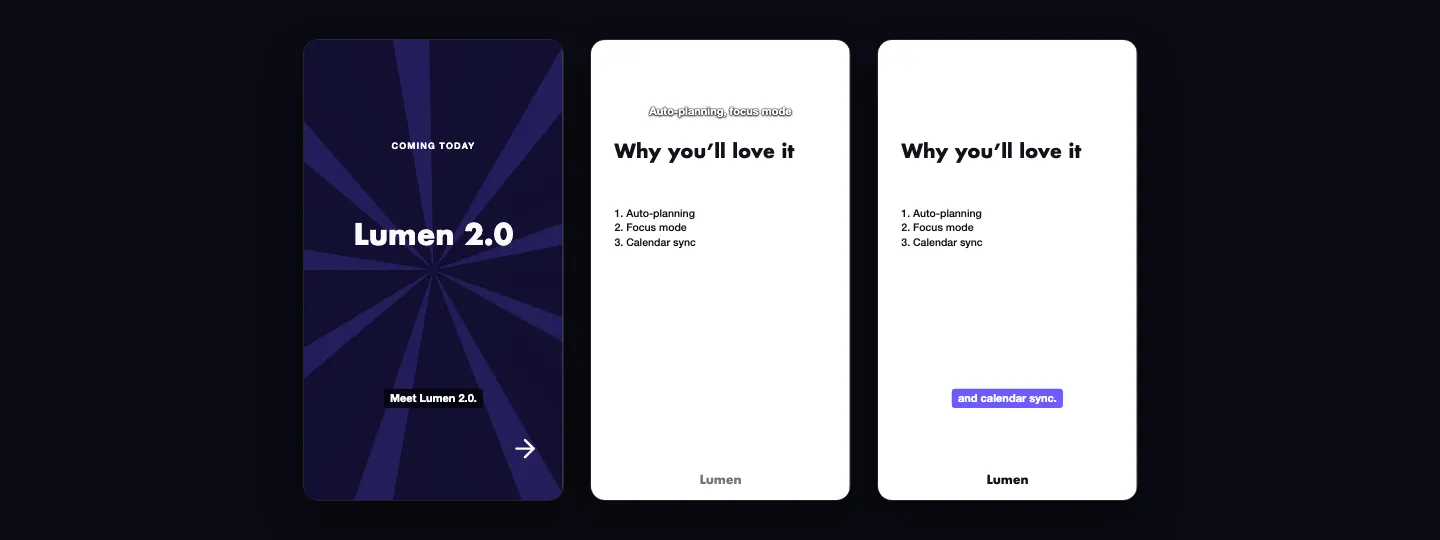
- Turn on Show subtitles to show the narration while the voice-over is on.
- Choose the Style (bar, outline or highlight) and the Position (bottom, middle or top). Keep subtitles clear of important text in your scenes.
Rendering adds the music, the recorded voice-over and the subtitles to the MP4 (see Rendering, downloading and sharing videos).