
Video posts: make Reels, Shorts and TikToks
Turn a social post into a short video with animated scenes and music, pick its format and length, and preview it before you render.
Updated October 15, 2026
A video post is a post in a social media set that plays as a short video: its designs become scenes with a length, a transition and motion, and the video gets music and, if you like, a voice-over with subtitles. You edit it like any other post, preview it in the studio and render it to an MP4 when it is ready.
Start a video
- Open a social media set, or create one on Home (see Plan social media content).
- In the post list, choose New video, or select a post and choose Turn into a video.
- Or start from a video template: the video templates come with scenes, motion and music, and starting from one is free.
Format and length
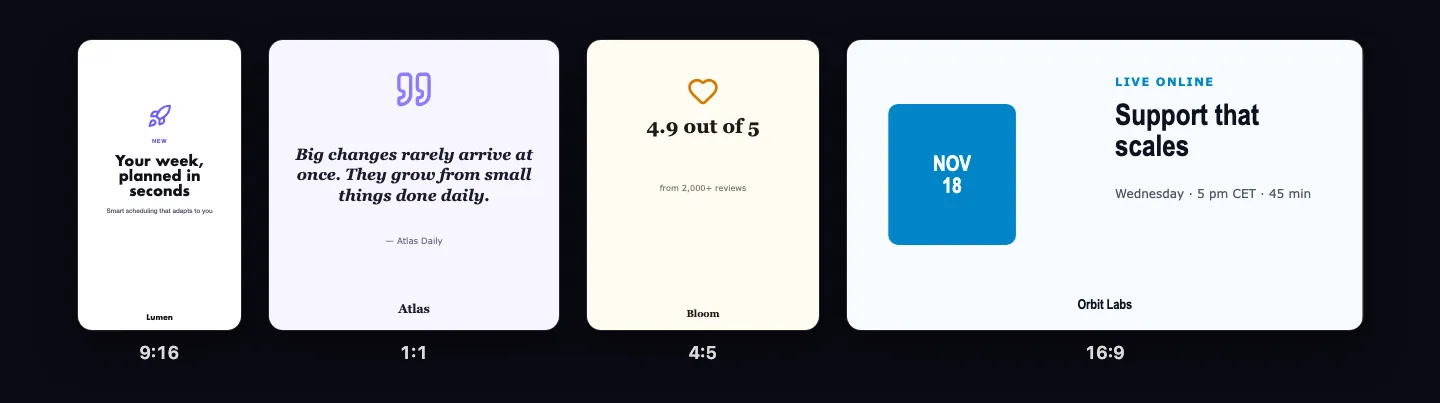
- Vertical 9:16 for Reels, Shorts and TikTok, Square 1:1 and Portrait 4:5 for the feed, Landscape 16:9 for YouTube, LinkedIn and websites.
- A video lasts 5 to 60 seconds. Set length… in the Video panel stretches or shortens every scene in proportion.
Scenes and motion
- Scenes lists the scenes under the canvas: add, duplicate, move or remove one there. Each scene is a design you edit on the canvas.
- For each scene choose its length, how it Comes in with (cut, fade, slide, zoom or wipe), the Text and picture motion and the Background motion.
- Select a text or picture and open Animation to choose exactly how it comes in, leaves and moves while it is visible.
Preview
The Video preview plays the video with its music, as it will be rendered. Space plays and pauses; the arrow keys skip a second. Turn on Loop to watch it again and again.
To change the video by describing what you want, see Talk to edit your video. For music, voice-over and subtitles see Music and voice-over, and to get the MP4 see Rendering, downloading and sharing videos.
Make it a still post turns the video back into a carousel: its scenes become slides and the music, voice-over and animations are removed. You can undo it.