
Dedicated database servers
On paid plans, move your live app’s database to a server of its own, with reserved memory and steadier speed under load. Charged daily by size.
Updated October 27, 2026
Your app’s data normally lives on Craftkite’s shared database servers, next to other apps. A dedicated server gives your live database a server of its own: its memory and processor are reserved for your app, so it stays quick when traffic grows and nobody else’s load slows it down.
Only the live database moves. The development database used by previews and builds stays on the shared server.
Who can use it
- Dedicated servers come with paid plans. On the Free plan the card shows See plans instead.
- A project can have one dedicated database, and only the project’s editors can move it.
- The app must be published first: only a live database can move.
Databases that can move
- PostgreSQL – the database Craftkite adds to your apps, at any size.
- MySQL – up to 1 GB of data.
- MongoDB – up to 256 MB of data, without views.
- MariaDB and Redis stay on the shared servers.
For a larger MySQL or MongoDB database the card says it is too large to move; contact support and we’ll move it for you.
Sizes and prices
| Size | Processor | Credits a month | About a day |
|---|---|---|---|
| 512 MB | 0.5 vCPU | 2,000 | 67 |
| 1 GB | 1 vCPU | 4,000 | 134 |
| 2 GB | 2 vCPU | 8,000 | 267 |
The price is taken one day at a time while the server exists, starting on the day you move, and appears in your credit history as Dedicated database. A day costs the monthly price divided by the days of that month, so a month never costs more than its monthly price. Moving there and back is free. The credit table always shows the current prices.
Steps to move to a dedicated server
- Open the project and go to Database → Server. If the app keeps its data in MySQL or MongoDB, the Dedicated server card is at the bottom of the Database tab.
- On the Dedicated server card, pick the Database (when the app has more than one) and a Size.
- Click Move to a dedicated server and confirm. Your balance must cover the first day.
- The card shows Moving while it works, and you can close the page. When it says In use, your live app runs on its own server.
The same card is on the project’s Database screen in the Craftkite mobile app.
What happens during the move
- A short freeze. While the data is copied, the live app cannot reach its database, so saving and loading data pauses. For a small database this takes seconds; bigger ones take longer.
- The copy is checked. Craftkite compares the row count of every table with the original. For MySQL it also compares a checksum of every table and the views, triggers and routines.
- The switch only happens when everything matches. The live version is then published again on its own, free of charge, and the copy on the shared server is deleted.
- If anything differs or fails, nothing changes. The app keeps the shared server, its access comes back at once and nothing is charged. Click Dismiss on the card and try again.
Backups
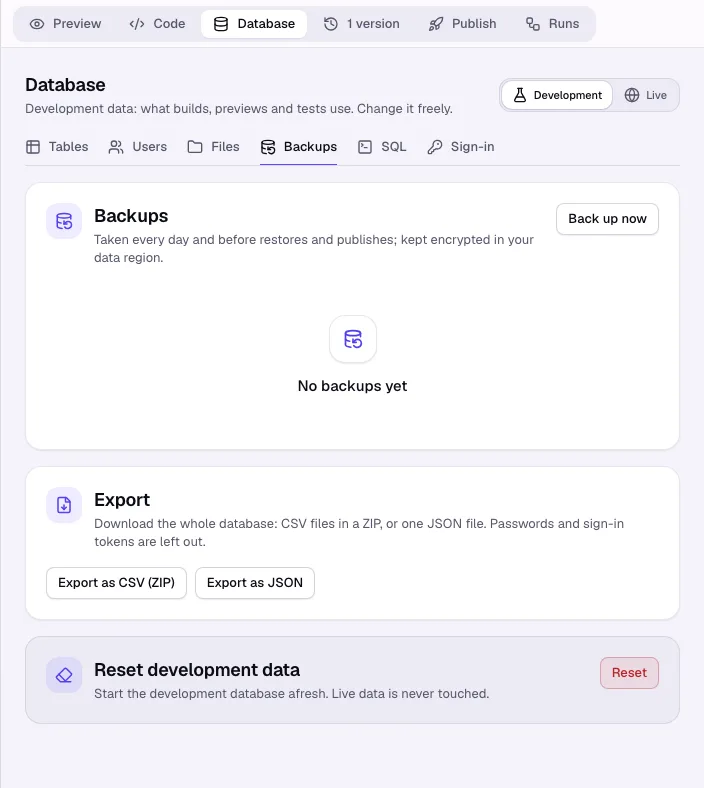
Backups work as before: the daily backups, Back up now and restores in Database → Backups now use the dedicated server. See Backups, exports and the SQL console.
Steps to move back
- Open the Dedicated server card again (Database → Server).
- Click Move back to the shared server and confirm.
- Your live data is copied back with the same short freeze and the same checks, the app is published again and the dedicated server is removed.
Moving back is free; the daily charge stops after that day. To move your account to another data region, move the database back first.
When your credits run out
- Starting a move needs enough credits for its first day; otherwise the card asks you to add credits.
- After that, each day is taken from your balance. What the balance cannot cover is recorded as owed and taken automatically as soon as you have credits again.
- You hear about it once, in the studio and by email, with the date on which your apps would pause.
- If it stays unpaid for 7 days, your live apps go offline until it is settled. The dedicated database keeps running and keeps all its data, and its days keep counting.
- Once nothing is owed, your apps start again on their own. Buy credits under Plans & billing, or move the database back to stop the daily charge.