
Make a video from a prompt
Describe a video in any language; Craftkite plans it as a storyboard with a credit quote, and once you approve it makes the finished video.
Updated October 17, 2026
Describe the video in your own words — what it is for, who should watch it and how it should feel — and Craftkite does the rest. It writes a storyboard, chooses the scenes and the style, makes the presenters, shots and voices, and renders the finished video. You see the price and approve it before anything is made.
Describe it
- Open a social media set and choose New video → AI video, or choose Use template on an avatar or real-people video template.
- Describe the video, for example “A 20-second Reel for our new oat latte: a friendly barista presents it in a cosy café”. Write in any language; the video is made in the language you write in.
- Choose a Style — Auto, Motion graphics, Talking avatar or Real people — and a Format: 9:16, 1:1, 4:5 or 16:9. On Auto, Craftkite infers both from your words, in any language: “with a presenter”, “real people talking”, “an animated explainer for YouTube”.
- If you like, pick a presenter and turn on Cinematic (see Talking avatars and presenters).
- Choose Plan. Planning has its own small price, shown on the button.
Check the storyboard and the quote
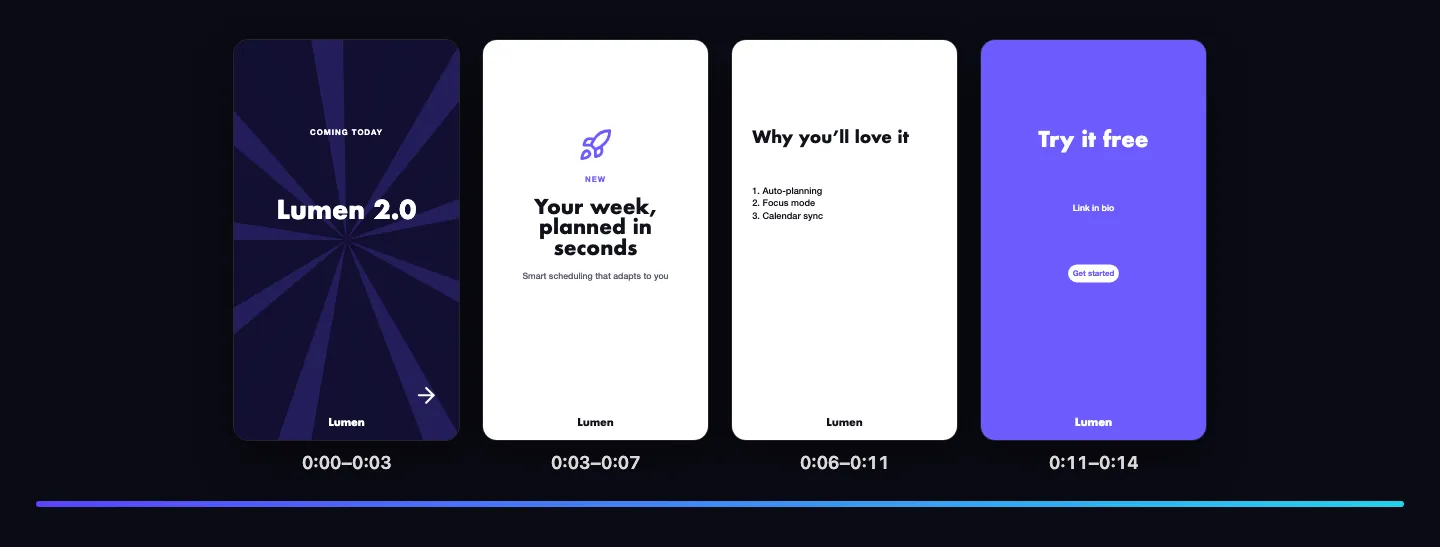
When the plan is ready you see the storyboard: every scene with its style, its length, the line that is spoken and the texts on screen. Below it is the quote, split by part:
- Presenters: per started minute of speech, or per second in Cinematic quality.
- Shots and real people: per second of generated footage, and each cast member’s reference image.
- Voice-over and Rendering: as for any video post.
Choose Approve and make to start, or Cancel. If you are not happy with the plan, cancel it and describe the video again with more detail. A plan you do not approve expires after a while; nothing more is charged for it.
Build and finish
- The progress shows four stages: plan, shots, scenes and render. You can keep working meanwhile, and you get a notice when the video is ready.
- The finished video appears as a video post in the set and opens in the player. Edit it like any other video post, or change it by talking (see Talk to edit your video).
- If one part cannot be made on our side, Craftkite makes it another way — a cinematic presenter in Standard quality, or a motion-graphics scene instead of a shot — and refunds the difference. If the whole video fails, the build is refunded.
What it costs
Every price comes from the current credit table, and the studio shows the total before you approve. If prices change between the quote and your approval, you see the new quote first. Planning is charged when the plan is made; the build is charged when you approve it. AI videos are part of the paid plans; Cinematic presenters and real-people shots are premium features, like AI video clips.
Every AI video carries an AI-generated label (see AI labels and disclosure).