Slack, Notion, Google Sheets and Linear
Let your app post to Slack, save entries in Notion, add rows to Google Sheets and open Linear issues, with your own accounts and keys.
Updated November 21, 2026
Your app can work with the tools your team already uses. Ask in your own words, for example “post a Slack message for every new order” or “save every application to our Notion database”, and Craftkite wires the service into the app’s server code.
What your app can do
- Slack: post messages and alerts to a channel of your workspace.
- Notion: save entries in a Notion database and show them in the app.
- Google Sheets: add a row for every sign-up, order or answer, and read rows back.
- Linear: open an issue from a bug report or feedback form and list open issues.
Connect a service
- Describe what the app should do with the service. Craftkite names it in the plan; you can also add it in the Integrations section of the Connections tab.
- Open How to get the keys under the service: the steps show where to create the key in the service’s own settings and which permissions it needs.
- Click Add key for each key. Each value is checked against the service’s key format before it is saved.
- Click Test connection. Craftkite makes one read-only request to the service and shows Connected or Keys refused; then restart the preview or publish again.
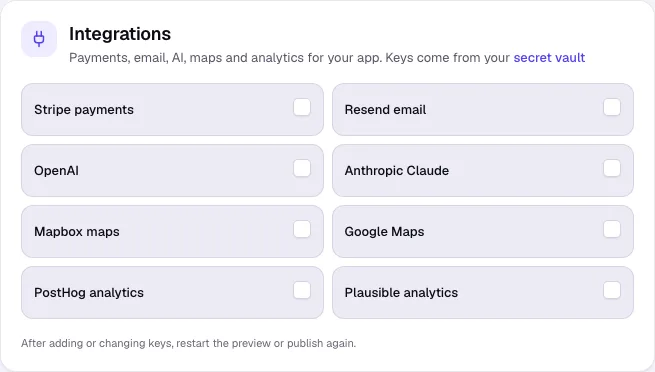
Your keys stay yours
The app uses your own account of each service with a key you create there, so you decide what it may read and write and can revoke it at any time. Keys are stored encrypted, stay on the server and never reach the browser, the phone app bundle or the AI. More about keys: Secrets and integrations.