Connect Snowflake
Build dashboards and tools on your Snowflake data warehouse; the token stays in your project’s encrypted vault.
Updated November 22, 2026
Craftkite can build apps that read your Snowflake data warehouse: sales dashboards, reports, internal tools and customer portals.
Connect your account
- In Snowsight, open your user profile, choose Programmatic access tokens and generate a token for a role that may read the data the app needs.
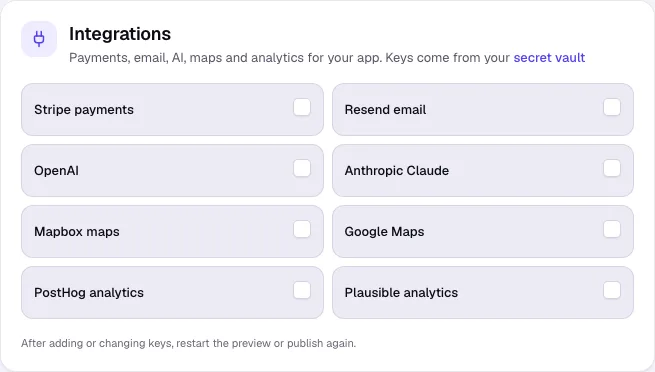
- In your project, open Connections → Integrations → Snowflake.
- Enter your account URL, for example
https://myorg-myaccount.snowflakecomputing.com, and paste the token. - Optionally name the warehouse, database, schema and role. Left empty, the user's defaults apply.
- Click Test connection. Craftkite runs
SELECT 1with your settings and tells you whether the token, the warehouse and the role are accepted.
The token is kept in the project's encrypted secret vault. It is used only by your app's server, never sent to visitors' browsers.
Ask for what you want
Describe the app in your own words, for example "a revenue dashboard with data from Snowflake, by region and month". Craftkite writes the queries on the server, passes every value safely, handles long-running queries and keeps results briefly in memory so the dashboard stays fast.
Good to know
- Use a role that can only read what the app needs.
- Queries run in your warehouse and use your Snowflake credits.
- If the test says the settings are wrong, check that the warehouse, database, schema and role exist and that the role is granted them.